

Hey, have you ever looked at your monitor and thought, "Why does everything look fuzzy or stretched today?" I've been there. Whether it's your laptop screen, desktop monitor, or an external LCD you just plugged in, getting the lcd resolution right can make a huge difference in how sharp and comfortable everything feels.
In this guide, I'll walk you through the basics of lcd screen resolution, why the glass inside the panel actually matters, and exactly how to adjust it on Windows, Mac, Linux, and even straight from the monitor itself. Plus, I'll cover the most common problems and how to fix them.

What Is LCD Resolution and Why Does the Glass Matter?
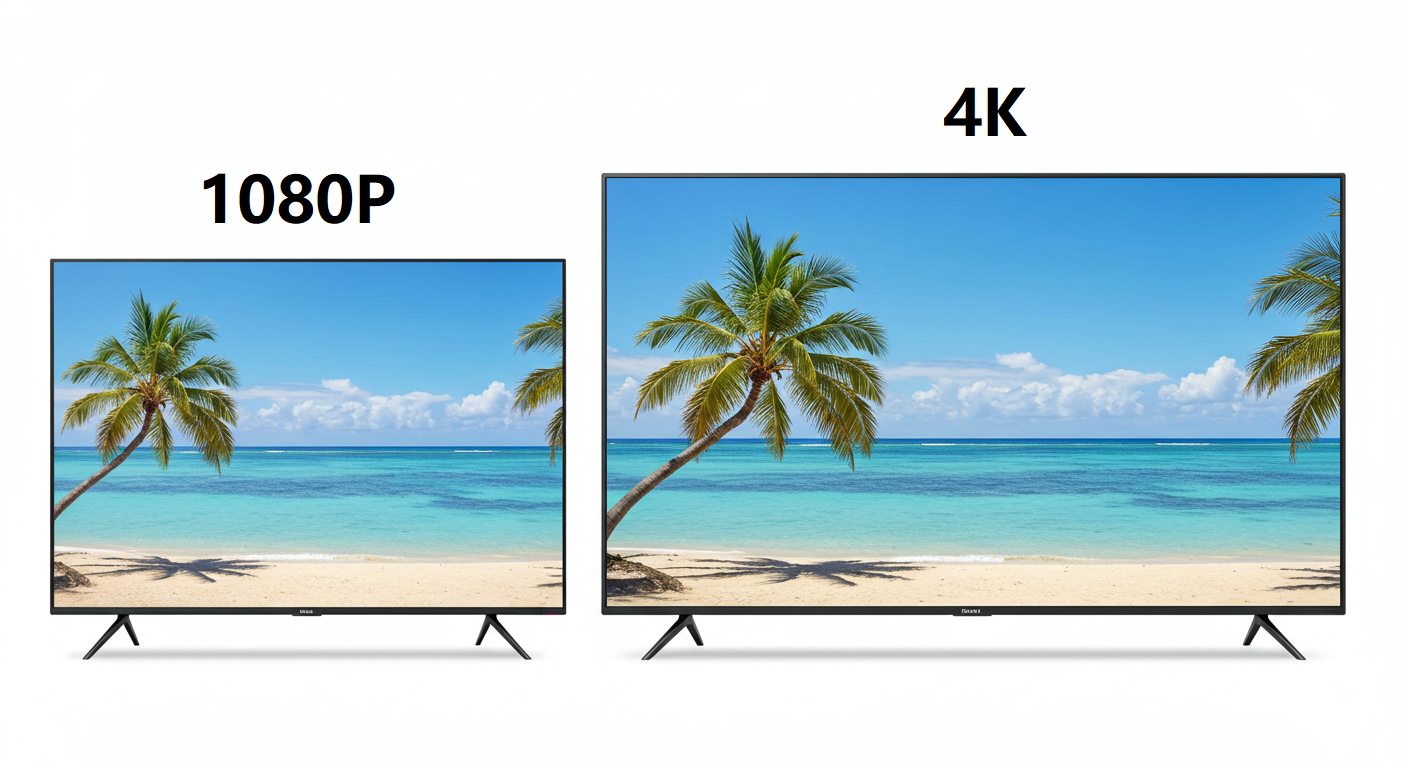
LCD resolution is basically the number of pixels your screen can show - for example, 1920×1080 (Full HD) or 3840×2160 (4K). But here's something a lot of people don't realize: the resolution isn't something your computer just decides. It's physically built into the LCD panel.
An LCD screen has two thin pieces of glass. The bottom glass (called the TFT array substrate) has millions of tiny transistors and pixels etched onto it during manufacturing. This process uses super-precise light exposure (photolithography) to create a fixed grid of pixels. Once that grid is made on the glass, the native lcd resolution is basically locked in - it's the one the screen was designed to show best.
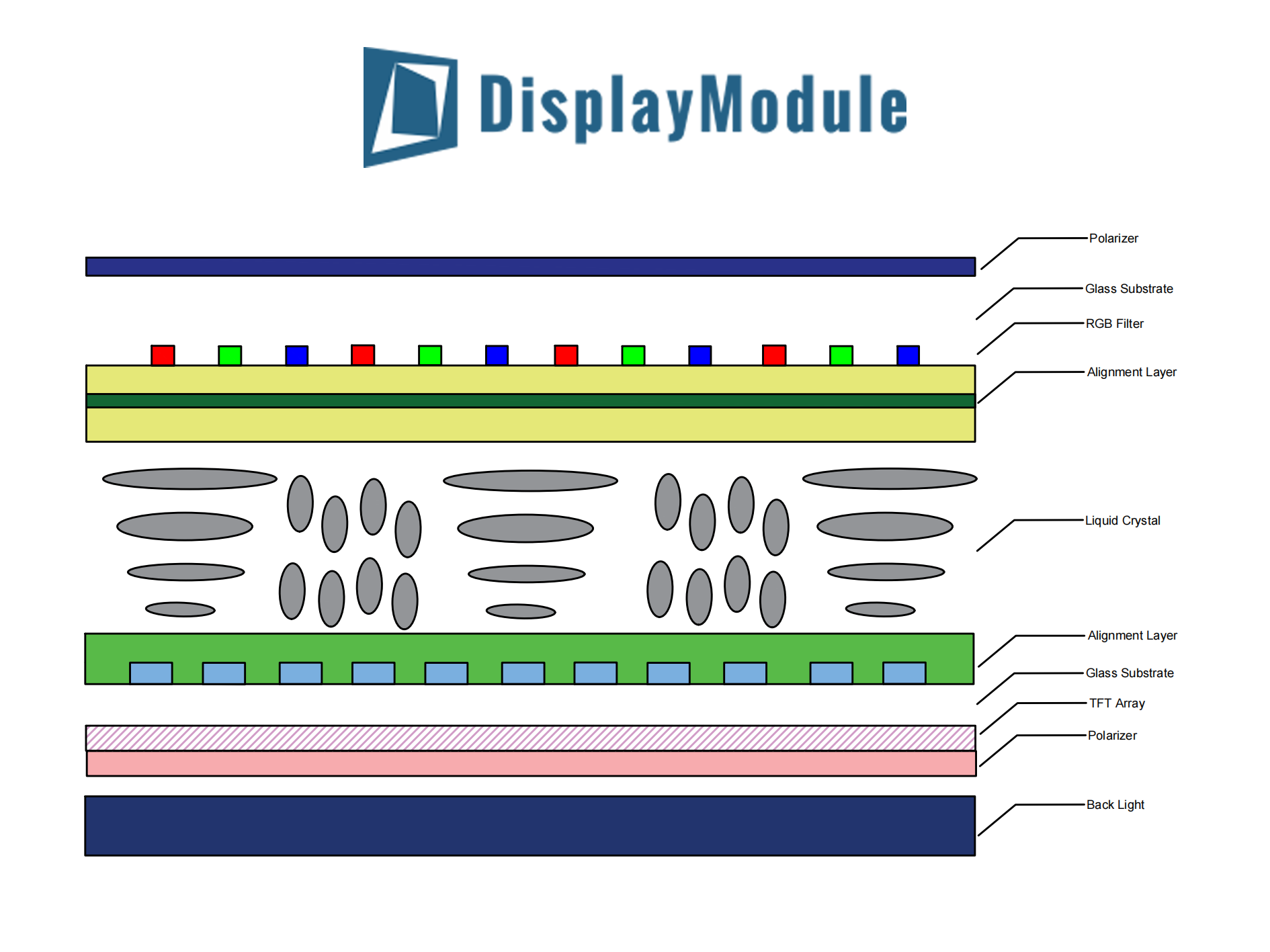
That's what people sometimes mean when they talk about lcd glass resolution - it's the pixel grid manufactured directly onto the glass substrate. If you try to run a different resolution, the screen has to stretch or shrink the image, which is why things often look blurry or distorted.
Pro tip: Always try to use the native lcd resolution (usually marked as "Recommended") for the sharpest picture.
How to Change LCD Resolution on Windows (The Easiest Way)
Most people are on Windows, so let's start here.
- Right-click on an empty spot on your desktop and choose Display settings.
- Scroll down until you see Display resolution.
- Click the dropdown and pick the option that says (Recommended) - that's your monitor's native lcd resolution.
If you have two monitors, click on the one you want to change first (they show up as little numbered boxes). Hit Apply and see if it looks better. Windows will give you 15 seconds to confirm, or it switches back automatically.

If the list is missing options or everything is grayed out, go to Advanced display and check your graphics driver. Updating your NVIDIA, AMD, or Intel driver often fixes weird lcd resolution problems.
Adjusting LCD Resolution on macOS
On a Mac it's pretty straightforward too.
Go to System Settings > Displays. You'll see your screen (and any external LCD). Choose Scaled to see more resolution choices.
Hold down the Option key while clicking Scaled and you'll unlock even more hidden options - useful when you plug in an external monitor.

macOS usually picks a good native lcd resolution automatically, but if the picture looks off, just try different scaled settings until it feels right.
Adjusting Resolution Directly from the LCD Monitor Menu
Sometimes the issue isn't your computer - it's the monitor itself.
Most LCD monitors have buttons on the bottom or side that bring up an on-screen menu (OSD). Look for options like Picture, Display Mode, Auto Adjust, or Aspect Ratio.
If your PC is sending the wrong signal, the monitor might stretch the image. Using the monitor's own scaler can sometimes clean it up quickly.

Common Problems and How to Fix Them
Here are the headaches I hear about most often:
Everything looks blurry → You're probably not at the native lcd resolution. Switch back to the recommended setting.
Screen goes black after changing → Wait 15 seconds - it usually reverts.
Resolution options are missing → Update your graphics drivers.
Multi-monitor setup looks weird → Set each screen to its own native lcd resolution and adjust the arrangement.
Advanced Tips: Going Beyond the Basic Options
If the built-in choices aren't enough, you can try Custom Resolution Utility (CRU). It lets you create custom lcd resolutions and tweak refresh rates. Just be careful - test small changes first because it can make the screen flicker or go blank.
Also, don't forget about scaling (DPI). Even at the right lcd resolution, you might need to adjust text size so everything stays readable without looking too small or too big.
For eye comfort, combine a good lcd screen resolution with proper brightness and maybe a blue light filter.
Final Thoughts
Getting your lcd resolution right really does make daily use much more enjoyable - sharper text, better colors, and less eye strain. The key is almost always using the native lcd resolution that matches the pixel grid on the glass inside your panel.
If you're still running into issues after trying these steps, feel free to leave a comment with your setup (Windows/Mac, monitor model, etc.) and I'll try to help.
Looking for a custom LCD solution?
At Minghua, we specialize in custom LCD business. Whether you need a specific lcd resolution, special glass substrate, unique size, or tailored performance for industrial, medical, or commercial use, we can design and manufacture exactly what you need. Get in touch with us - we'd love to help bring your custom LCD project to life.


