

Want to turn a plain TFT LCD into a sleek capacitive touchscreen for your Raspberry Pi, Arduino, or any custom project? It might sound tricky, but with clean hands, good lighting, and a bit of patience, most makers can pull it off without a cleanroom. The secret is mostly in the dust control and careful alignment - rush those and you'll end up with bubbles or dead touch zones.
Here's a practical, step-by-step walkthrough that skips the fluff and focuses on what actually works when you're assembling TFT + CTP (capacitive touch panel) yourself.
Step 1: Beat Static – Protect Your Parts First
Static discharge is the #1 way to kill a display before you even start.
- Work on a clean wooden table or anti-static mat.
- Wear an ESD wrist strap clipped to a grounded metal object (like your PC case). If you don't have one, touch grounded metal every few minutes.
- Keep the workspace dust-free - turn off fans, close windows if it's windy, no pets wandering around.
- Wash and dry your hands thoroughly; skin oils are sneaky enemies too.
Step 2: Gather Your Tools
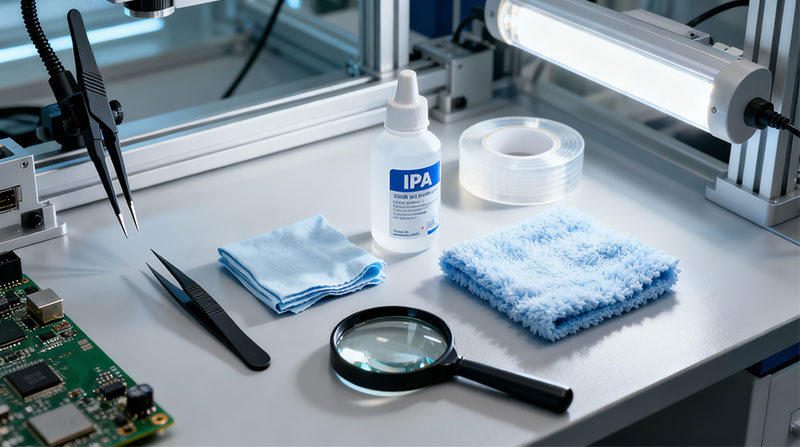
You don't need pro gear, but these make life much easier:
- Anti-static tweezers
- Can of compressed air
- 99%+ isopropyl alcohol (IPA) + lint-free wipes or cloths
- Magnifying glass or bright lamp (phone camera zoom helps too)
- Optical-grade border double-sided adhesive tape (pre-cut frame style is best)
- Calm hands and no deadline pressure
Step 3: Peel the TFT LCD Protection Films
Your TFT usually ships with front and back protective sheets.
- Start with the front (display side): find the pull tab, lift at a shallow angle, and peel slowly.
- Never let your fingers touch the actual glass or polarizer - fingerprints can become permanent under pressure or heat later. Use tweezers to grab the tab if needed.
- Leave the back film on for now to protect the circuit board.
Step 4: Clean & Peel the Touch Panel
Capacitive touch glass is more fragile and shows fingerprints worse.
- Blow both sides with compressed air to remove loose dust.
- Peel off any protective films (front and back if present) the same careful way - low angle, slow pull.
- If you see clinging lint or specks, lightly dampen a lint-free cloth with IPA, wipe in one straight direction, then immediately dry with a clean dry cloth or more air.
Step 5: Serious Dust Inspection
This is the make-or-break step - skip it and regret it forever.
- Hold both the TFT and touch panel at an angle under strong light (desk lamp, window, flashlight). Tilt and rotate slowly.
- Look for tiny hairs, fibers, sparkly dust - they'll jump out at you.
- Blast stubborn bits with compressed air. For stuck particles, use IPA-dampened cloth (one-way wipe only), then dry completely.
- Keep checking until both surfaces look mirror-clean. Spend the extra 10–15 minutes here.
Step 6: Perfect Alignment
Lay the TFT face-up on your clean surface.
- Gently lower the touch panel over it, lining up all four edges exactly.
- Look straight through the touch glass to confirm the active display area is perfectly centered underneath.
- Even 0.5 mm off means touch won't register properly near the edges. If it's not right, lift straight up (don't slide) and try again.
Step 7: Bond Them Together
Most touch panels come with pre-applied border adhesive tape around the edges (with release liner on top). If yours does:
- Peel off the release liner from the tape.
- Starting from one edge, slowly lower the touch panel onto the TFT while applying even, gentle pressure along the way.
- Use your fingertips or a soft credit-card-like tool to press outward from the center, squeezing air bubbles toward the edges.
No pre-tape? Apply thin border tape to the TFT frame first, peel the top liner, then lower the touch panel the same way.
Step 8: Final Inspection & Test
- Let it sit 5–10 minutes so the adhesive sets.
- Connect to your board (Raspberry Pi, etc.) and power it up.
- Run a full touch test: check corners, edges, swipe gestures, multi-touch if your panel supports it.
Shine light at different angles to spot any trapped dust or rainbow interference patterns (Newton's rings) - those usually mean uneven pressure and you may need to redo it.
Bubbles or dust inside? Sometimes you can carefully pry it apart, clean, and retry, but often it's safer (and less stressful) to use fresh parts.
Done! You've now got a custom-built touchscreen module ready for your enclosure or project. Mount it, code it, show it off.
If you run into weird touch behavior, alignment issues, or need recommendations on tape/suppliers, feel free to ask in the comments - happy to help debug. Now go build something awesome.


