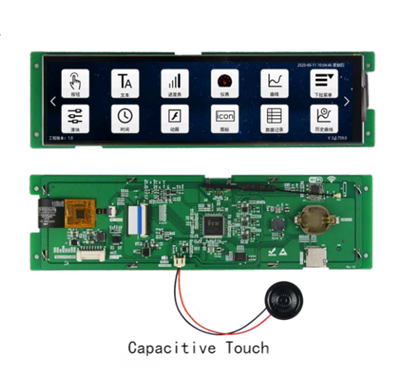
Updating the firmware of a 3.5-inch LCD screen can significantly enhance its performance, introduce new features, and fix existing bugs. As a trusted 3.5-inch LCD screen supplier, I understand the importance of providing clear guidance on this process. In this blog post, I'll walk you through the steps to update the firmware of a 3.5-inch LCD screen, ensuring a smooth and successful experience.
Why Update the Firmware?
Before delving into the update process, it's essential to understand why firmware updates are crucial. Firmware is the software that runs on your LCD screen, controlling its various functions and operations. Over time, manufacturers release firmware updates to improve the screen's performance, add new features, enhance compatibility with other devices, and address security vulnerabilities.
By updating the firmware, you can:
- Improve Performance: Firmware updates often include optimizations that can enhance the screen's display quality, response time, and overall performance.
- Add New Features: Manufacturers may introduce new features or functionality through firmware updates, allowing you to take full advantage of your LCD screen's capabilities.
- Enhance Compatibility: Updates can improve the screen's compatibility with other devices, such as computers, tablets, and smartphones, ensuring seamless integration and functionality.
- Fix Bugs and Security Vulnerabilities: Firmware updates can address known bugs and security vulnerabilities, protecting your device from potential threats and ensuring a stable and secure user experience.
Prerequisites
Before you begin the firmware update process, there are a few prerequisites you need to ensure:
- Check Compatibility: Make sure the firmware update is compatible with your specific 3.5-inch LCD screen model. Check the manufacturer's website or documentation for the latest firmware version and compatibility information.
- Backup Data: Although firmware updates typically do not affect your data, it's always a good idea to backup any important files or settings on your device before proceeding.
- Charge the Device: Ensure that your LCD screen is fully charged or connected to a power source during the update process to prevent any interruptions.
- Download the Firmware: Visit the manufacturer's website and download the latest firmware update for your 3.5-inch LCD screen. Save the file to a location on your computer where you can easily access it.
Step-by-Step Guide to Updating the Firmware
Once you have completed the prerequisites, you can proceed with the firmware update process. Follow these steps carefully to ensure a successful update:
Step 1: Prepare the Update File
- Format the Storage Device: Insert a USB flash drive or SD card into your computer and format it to the FAT32 file system. This ensures compatibility with most LCD screens.
- Copy the Firmware File: Locate the firmware file you downloaded from the manufacturer's website and copy it to the root directory of the formatted storage device. Do not create any folders or subdirectories on the storage device.
Step 2: Enter the Update Mode
- Power Off the LCD Screen: Turn off your 3.5-inch LCD screen and remove any power source or cables connected to it.
- Insert the Storage Device: Insert the USB flash drive or SD card containing the firmware file into the appropriate port on your LCD screen.
- Power On the Screen: Connect the LCD screen to a power source and turn it on. Depending on the screen model, you may need to press a specific button or combination of buttons to enter the update mode. Refer to the manufacturer's documentation for instructions on how to enter the update mode.
Step 3: Start the Update Process
- Select the Firmware File: Once you have entered the update mode, the LCD screen will display a menu or interface allowing you to select the firmware file for update. Use the screen's navigation buttons or touch screen to navigate to the firmware file on the storage device and select it.
- Confirm the Update: After selecting the firmware file, the screen will prompt you to confirm the update. Review the information displayed on the screen and ensure that you are updating the correct firmware version. If everything looks correct, confirm the update to start the process.
Step 4: Wait for the Update to Complete
- Do Not Interrupt the Process: Once the update process has started, do not turn off the LCD screen or remove the storage device. Interrupting the process may cause the update to fail and could potentially damage the screen.
- Monitor the Progress: The LCD screen will display the progress of the update process, usually as a percentage or a progress bar. Wait patiently for the update to complete, which may take several minutes depending on the size of the firmware file and the speed of the storage device.
Step 5: Verify the Update
- Restart the Screen: Once the update process is complete, the LCD screen will automatically restart. Wait for the screen to boot up and check if the update was successful.
- Check for New Features or Improvements: After the screen has restarted, test its functionality and check for any new features or improvements. You may also want to refer to the manufacturer's release notes for information on what has been updated in the firmware.
Troubleshooting
If you encounter any issues during the firmware update process, here are some troubleshooting tips to help you resolve them:
- Check the Compatibility: Make sure you are using the correct firmware version for your specific LCD screen model. Check the manufacturer's website or documentation for compatibility information.
- Verify the Storage Device: Ensure that the USB flash drive or SD card is formatted to the FAT32 file system and that the firmware file is copied to the root directory of the storage device.
- Try a Different Storage Device: If you are experiencing issues with the storage device, try using a different USB flash drive or SD card to see if the problem persists.
- Contact Technical Support: If you are still unable to update the firmware after trying the above steps, contact the manufacturer's technical support team for further assistance. They can provide you with additional troubleshooting steps or help you resolve the issue.
Other LCD Screen Options
In addition to our 3.5-inch LCD screens, we also offer a wide range of other LCD screen options to meet your specific needs. Check out our 5 Inch LCD Screen, 8 Inch Lcd Touch Screen, and 8.68 Inch HD087IA-02A Module, Sensor (touch Screen), With Display for more information.


Contact Us for Purchasing
If you are interested in purchasing our 3.5-inch LCD screens or any of our other products, we would be happy to assist you. Our team of experts can provide you with detailed product information, pricing, and technical support to help you make an informed decision. Contact us today to discuss your requirements and start the purchasing process.
References
- Manufacturer's documentation and user manuals
- Online forums and communities for LCD screen users
- Technical support resources provided by the LCD screen manufacturer