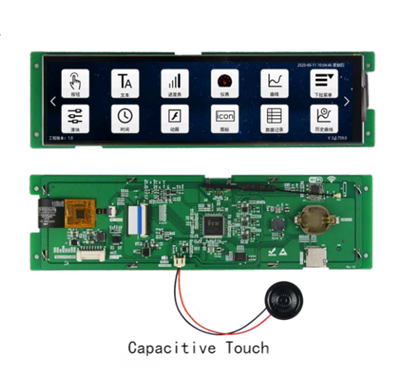
Hey there! I'm a supplier of 3.5 Inch LCD Screens, and I've seen a lot of folks scratching their heads over how to change the contrast of these nifty little displays. So, I thought I'd put together this blog to break it down for you in a super easy way.
First off, why would you want to change the contrast of your 3.5 Inch LCD Screen? Well, a good contrast ratio can make a world of difference in how your content looks. Whether you're using it for a DIY project, a small device, or just to display some cool graphics, adjusting the contrast can enhance the clarity, make colors pop, and overall give you a better viewing experience.


Understanding the Basics of Contrast
Before we dive into the how-to, let's quickly go over what contrast actually means. Contrast is the difference between the brightest whites and the darkest blacks that an LCD screen can display. A high contrast ratio means that the whites are really bright and the blacks are really dark, which results in a more vivid and detailed image. On the other hand, a low contrast ratio can make the image look washed out and less sharp.
Methods to Change the Contrast
1. Using the Built - in Controls
Most 3.5 Inch LCD Screens come with built - in controls that allow you to adjust the contrast. These controls are usually located on the side or back of the screen. Look for buttons labeled "Menu", "Contrast", "Brightness", etc.
Here's a step - by - step guide on how to use them:
- First, turn on your 3.5 Inch LCD Screen.
- Press the "Menu" button. This will bring up the on - screen menu.
- Use the arrow keys to navigate through the menu and find the "Contrast" option.
- Once you've selected the "Contrast" option, you can use the up and down arrow keys to increase or decrease the contrast level.
- As you adjust the contrast, you'll see the image on the screen change in real - time. Keep adjusting until you're happy with how it looks.
- When you're done, press the "Menu" button again to exit the menu.
2. Through Software
If your 3.5 Inch LCD Screen is connected to a device like a computer or a Raspberry Pi, you can also adjust the contrast through software.
For example, if it's connected to a Windows computer:
- Right - click on the desktop and select "Display settings".
- Scroll down and click on "Advanced display settings".
- Here, you'll find options to adjust the display properties, including contrast. You may need to use the graphics card control panel if the basic display settings don't have a contrast adjustment option. Look for the graphics card icon in the system tray, right - click on it, and select the control panel. From there, you can find the contrast adjustment slider.
If it's connected to a Raspberry Pi:
- Open the terminal and type in commands related to the display settings. You can use tools like xrandr to adjust the contrast. For example, you can use the command
xrandr --output HDMI - 1 --gamma 1:1:1to set the gamma (which is related to contrast) to a certain value. You can experiment with different values to get the desired contrast.
Tips for Optimal Contrast
- Consider the Environment: If you're using the 3.5 Inch LCD Screen in a bright environment, you may need to increase the contrast to make the image more visible. On the other hand, in a dimly lit room, a lower contrast setting might be more comfortable for your eyes.
- Calibrate Regularly: Over time, the contrast of your screen may change. It's a good idea to calibrate it regularly to ensure that you're always getting the best image quality.
- Compare with a Reference Image: You can use a reference image with well - defined blacks and whites to adjust the contrast. Try to make the blacks as dark and the whites as bright as possible without losing any details.
Related Products
If you're interested in other sizes of LCD screens, we also offer 7 Inch LCD Screen and 5 Inch LCD Screen. These screens also come with similar adjustment options and can be used for a variety of applications. And of course, our 3.5 Inch LCD Screen is a great choice for projects where space is limited.
Conclusion
Changing the contrast of a 3.5 Inch LCD Screen is not as complicated as it may seem. Whether you use the built - in controls or software, you can easily adjust the contrast to get the best viewing experience. If you have any questions or need further assistance with our 3.5 Inch LCD Screens or other products, don't hesitate to reach out. We're here to help you make the most of your display. If you're interested in purchasing our products, feel free to contact us for a procurement discussion. We're looking forward to working with you!
References
- "LCD Display Technology Basics" - A general guide on LCD technology and display settings.
- Manufacturer's manuals for 3.5 Inch LCD Screens.