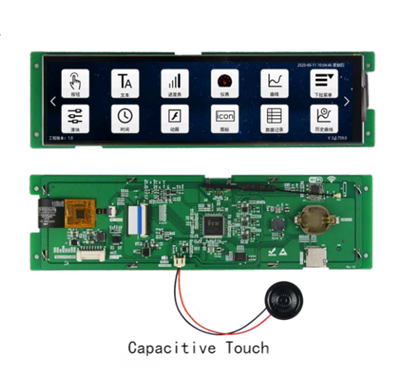
As a supplier of 7 inch UART displays, I understand the importance of accurate calibration for these touch screen displays. Calibration ensures that the touch input precisely corresponds to the on - screen position, providing users with a seamless and intuitive interaction experience. In this blog, I will guide you through the process of calibrating a 7 inch UART touch screen display.
Understanding the Basics of 7 inch UART Touch Screen Displays
Before diving into the calibration process, it's essential to have a basic understanding of what a 7 inch UART touch screen display is. A 7 inch UART (Universal Asynchronous Receiver - Transmitter) display is a type of display that uses the UART communication protocol to transmit data. The 7 - inch size is a popular choice for various applications, including industrial control panels, home automation systems, and handheld devices.
The touch screen functionality allows users to interact directly with the display by touching the screen. However, over time or due to factors such as temperature changes and physical impacts, the touch input may not align accurately with the on - screen elements. This is where calibration comes in.
Why Calibration is Necessary
Calibration is crucial for several reasons. Firstly, it improves the accuracy of touch input. When a touch screen is not calibrated correctly, users may find that touching a specific area on the screen does not activate the corresponding on - screen button or function. This can lead to frustration and a poor user experience.
Secondly, calibration helps to maintain the longevity of the touch screen. Incorrect touch input can cause unnecessary wear and tear on the screen surface, as users may press harder or more frequently in an attempt to get the desired response. By ensuring accurate touch input, calibration reduces this risk.


Finally, for applications where precision is key, such as in industrial control or medical devices, accurate calibration is essential. Any error in touch input can lead to incorrect commands being issued, which can have serious consequences.
Prerequisites for Calibration
Before you start calibrating your 7 inch UART touch screen display, there are a few things you need to prepare:
- Power Supply: Ensure that the display is properly powered. A stable power supply is crucial for accurate calibration.
- Clean Screen: Clean the touch screen surface with a soft, lint - free cloth. Any dirt, dust, or fingerprints on the screen can affect the calibration process.
- Calibration Software or Tool: Most 7 inch UART touch screen displays come with dedicated calibration software or a built - in calibration tool. You need to have access to this software or know how to access the built - in tool.
- Reference Point: Have a clear understanding of the reference points on the screen. These are the points that you will be touching during the calibration process.
Step - by - Step Calibration Process
The following is a general step - by - step guide to calibrating a 7 inch UART touch screen display. Note that the specific steps may vary depending on the manufacturer and model of the display.
Step 1: Access the Calibration Mode
The first step is to access the calibration mode. This can usually be done through the display's settings menu or by using a specific combination of buttons. Refer to the user manual of your 7 inch UART Display for detailed instructions on how to access the calibration mode.
Step 2: Initial Setup
Once you are in the calibration mode, the display will prompt you to perform some initial setup. This may include selecting the language, setting the calibration type (e.g., single - point or multi - point calibration), and confirming the calibration process.
Step 3: Touch the Reference Points
The display will then show a series of reference points on the screen. These points are typically located at the corners and the center of the screen. Use a stylus or your finger to touch each reference point precisely. Make sure to touch the center of each point as accurately as possible.
As you touch each reference point, the display will record the touch coordinates. The number of reference points may vary, but most calibration processes use at least four or five points for accurate calibration.
Step 4: Confirm the Calibration
After touching all the reference points, the display will calculate the calibration parameters based on the recorded touch coordinates. It will then prompt you to confirm the calibration. Review the calibration results to ensure that they are satisfactory. If the calibration is not accurate, you may need to repeat the calibration process.
Step 5: Save the Calibration Settings
Once you are satisfied with the calibration results, save the calibration settings. This will ensure that the display uses the new calibration parameters for all future touch inputs.
Troubleshooting Calibration Issues
Sometimes, you may encounter issues during the calibration process. Here are some common problems and their solutions:
- Inaccurate Calibration: If the calibration is not accurate, try cleaning the screen again and repeating the calibration process. Make sure that you are touching the reference points precisely. If the problem persists, it may be a hardware issue, and you should contact the manufacturer for further assistance.
- Calibration Tool Not Working: If the calibration software or tool is not working, check if it is properly installed and updated. You may also need to check the connection between the display and the calibration device.
- Touch Screen Not Responding: If the touch screen does not respond during the calibration process, check the power supply and the connection between the touch screen and the display controller. It may also be a problem with the touch screen driver, in which case you may need to reinstall the driver.
Other Considerations
When using a 7 inch UART touch screen display, there are other factors to keep in mind. For example, different operating systems may have different requirements for touch screen calibration. Make sure to follow the specific instructions provided by the operating system manufacturer.
Also, if you are using the display in a harsh environment, such as high - humidity or high - temperature conditions, you may need to calibrate the screen more frequently. These environmental factors can affect the performance of the touch screen over time.
Related Products
In addition to our 7 inch UART Display, we also offer other UART display products, such as the 8.8 Inch UART Display and the 8 inch UART Display Screen. These displays are suitable for a wide range of applications and offer similar touch screen functionality.
Contact for Purchase and Consultation
If you are interested in our 7 inch UART touch screen displays or have any questions about calibration or other aspects of our products, please feel free to contact us. We are always ready to assist you with your purchase and provide professional advice.
References
- Manufacturer's User Manual for 7 inch UART Touch Screen Display
- Technical Documentation on UART Communication Protocol
- Research Papers on Touch Screen Calibration Techniques